A big-screen experience doesn’t have to begin with a permanent entertainment room. A compact projector can give you another way to enjoy movies, shows, and casual viewing at home, with a setup you can adapt to your space. For more guidance, see QKK Projector.pdf.
Our featured mini projector combines 1080P Full HD resolution, autofocus, 4K support, and Android 11. Those features offer a useful starting point for comparing your options, but each one means something different. Here’s how to understand them and plan a comfortable place to watch.
Make Room for Big-Screen Viewing
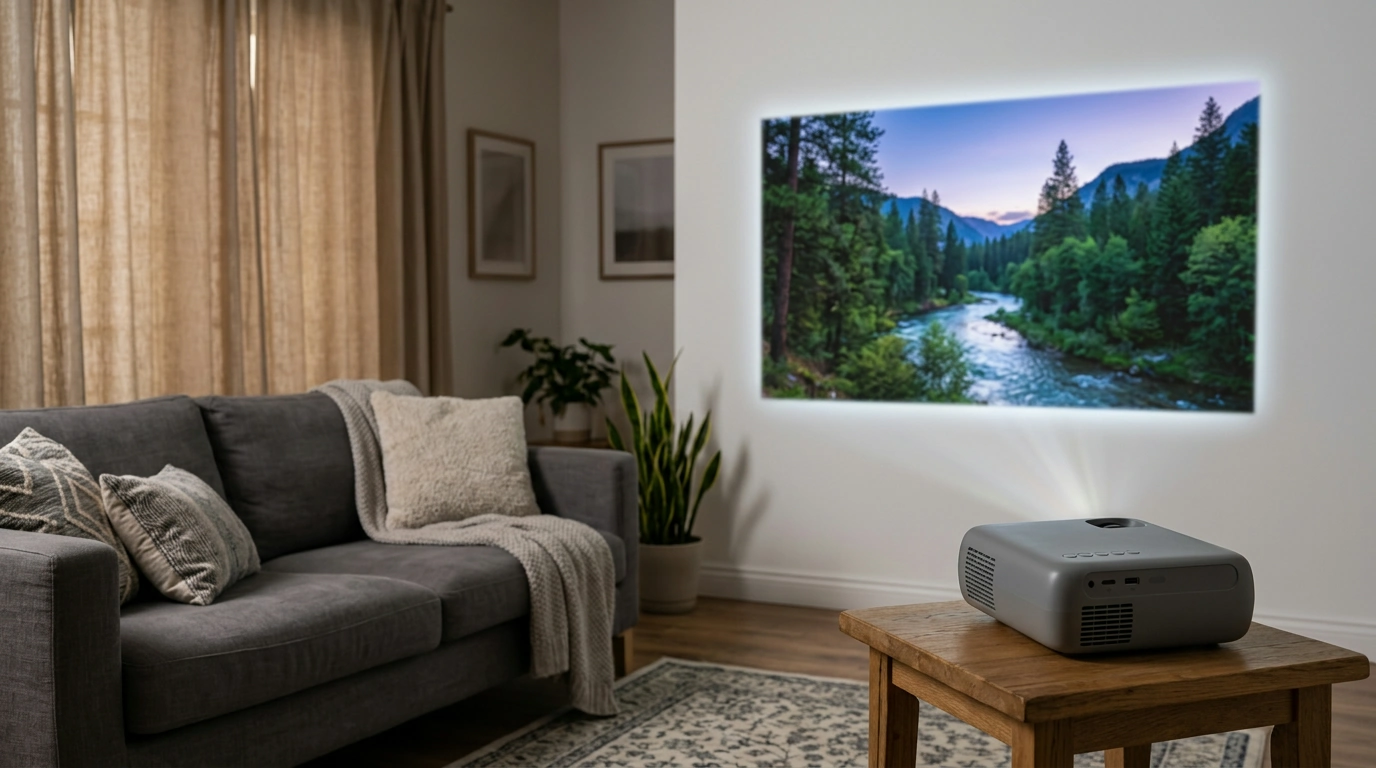
A mini projector can fit into a flexible home entertainment setup. You might use a clear living room wall for a movie night, arrange chairs in a spare room for a show, or set up a screen when you want a change from your usual television. The important question is not just where the projector will sit, but where everyone will sit in relation to the picture.
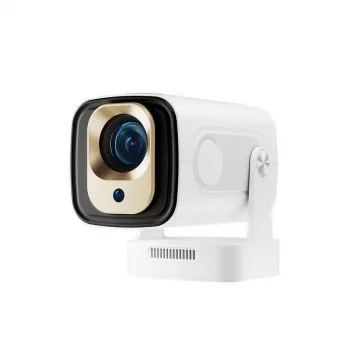
Our 1080P Full HD Auto Focus Mini Projector with 4K Support and Android 11 is the featured option for this guide. Its compact format makes it worth considering when you want a viewing setup that doesn’t need to occupy the same spot all the time.
Before settling on a location, think about the path between the projector and your wall or screen. You’ll want a clear projection area and a stable place for the unit that won’t interfere with people moving around the room.
What the Main Features Mean
Projector descriptions can bring several technical terms together. Understanding the difference between image resolution, supported content, focusing, and the operating system can make a comparison easier.
Projector Features at a Glance
| Feature |
What to know |
| 1080P Full HD |
Full HD resolution for the projected picture. |
| 4K support |
4K support does not mean native 4K projection. |
| Auto focus |
Designed to help bring the image into focus. |
| Android 11 |
An Android operating system for the projector. |
Full HD and 4K support
Full HD, often called 1080p, describes a picture with a resolution of 1920 by 1080 pixels. The projector is described as 1080P Full HD with 4K support; that does not make it a native 4K projector. Support for higher-resolution content and the resolution of the projected picture are separate considerations.
If you’re comparing display terminology, Consumer Reports’ explanation of 4K provides helpful background on what the resolution label means.
Autofocus and Android 11
Autofocus is intended to help bring the projected picture into focus. A focused image makes text, edges, and other picture details easier to see, although your placement and viewing surface still matter. Follow the product instructions for setup and any available adjustments.
Android 11 is the projector’s operating system. It should not be taken as a guarantee that every Android app or streaming service will work on the device. You can learn more about the operating system from Android’s overview of Android 11, then confirm the requirements of any service you plan to use.
Set Up a Comfortable Viewing Space
Start with a stable surface facing a clear wall or projection screen. Give the projector room to sit securely, and keep its light path free of objects that could interrupt the picture. Use the product instructions to determine appropriate placement, connections, and focus adjustments rather than relying on a fixed distance that may not suit your setup.
Ambient light also deserves attention. Closing curtains, dimming nearby lights, or choosing an evening viewing time can make the picture easier to see. If light from a window falls directly on the viewing surface, rearranging the room may help more than changing your seat.
Next, adjust seating to suit the available picture area. You should be able to see the full image without furniture or other viewers blocking your view. Leave enough room to move around comfortably, especially if cables run between the projector and another device.
A smooth, clear wall can be a practical starting point, while a dedicated screen may suit a more permanent arrangement. Either way, try your intended viewing position before organizing the rest of the room around it.
Before Choosing Your Projector
Consider how large your room is, how much light you can control, and how much wall or screen area you can dedicate to the picture. A larger image is not automatically more comfortable if seating is too close or the available surface is interrupted by shelves and decorations.
Also consider what you want to watch and how you plan to access it. Review the available connections and confirm that your preferred apps are compatible before purchasing. If you intend to connect another device, verify that the two products can work together rather than assuming a particular port or wireless connection is included.
For a separate desk or gaming setup, our Hot Swap 71-Key Wireless Mechanical Gaming Keyboard is another option to explore. Check compatibility with your intended device before pairing any accessories with a projector setup.
When you’re ready to compare, explore our projector listing for current price and availability. Our team recommends matching the features to your room and viewing habits so your choice works for the way you actually plan to use it.
FAQ
Does 4K support mean this projector displays native 4K?
No. The projector is described as 1080P Full HD with 4K support, not as a native 4K projector.
What does autofocus do on a projector?
Autofocus is intended to help bring the projected picture into focus. Follow the product instructions for setup and adjustments.
Can I use any streaming app on Android 11?
App availability and compatibility vary. Check the product listing and the app provider’s requirements before relying on a particular service.
Recommended for you












Leave a comment